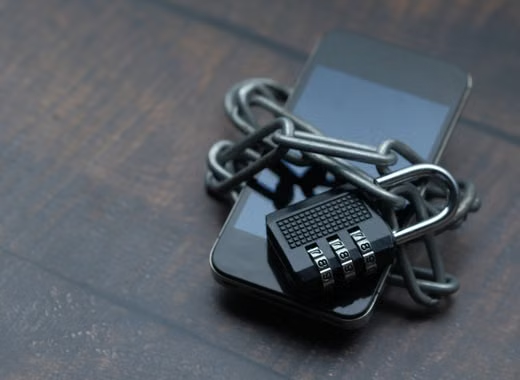
To protect your data from cyber attacks, you must combine encrypted offline backups, hardware-based multi-factor authentication, and strict password isolation across every account you own. Setting a strong password simply isn’t enough anymore when automated tools can test millions of credential combinations in seconds. Real security comes from building layers around your information so that when one defenses fails, another immediately stops the intruder.
Think of your personal data like a home. Locking the front door is great, but if your side windows are wide open and you left a key under the doormat, you are still exposed. Cybersecurity works the exact same way.
Why Are Hackers Targetting Personal and Small Business Data?
Many people assume hackers only target huge corporations like banks or tech giants. That mistake costs regular users thousands of dollars every year.
Automated bots crawl the web 24/7 scanning for easy victims. They do not care who you are. They care about finding vulnerable software, weak credentials, or unsecured cloud storage folders.
+------------------------+------------------------------------+---------------------------------------+
| Threat Type            | Primary Goal                       | Typical Attack Vector                 |
+------------------------+------------------------------------+---------------------------------------+
| Ransomware             | Extort money to unlock files       | Malicious email attachments, open RDP |
| Credential Stuffing    | Hijack bank or shopping accounts   | Leaked password lists from old breaches|
| Phishing               | Steal identity / login details     | Fake login portals, SMS spoofing      |
+------------------------+------------------------------------+---------------------------------------+
Take small remote teams, for instance. A freelance designer working on public coffee shop Wi-Fi without protection can easily leak sensitive client files. The attacker wasn’t tracking the designer specifically—they were just listening to unencrypted traffic on the local network.
The Cost of a Weak Password Strategy
Using Password123! or reusing your pet’s name across five different websites is a massive risk. When an obscure forum gets breached and leaks its database, attackers immediately take those email and password pairs and run them through automated scripts against major services like PayPal, Netflix, and Amazon.
If you reuse credentials, one small leak breaks everything.
5 Practical Steps to Protect Your Data From Cyber Attacks
Protecting your digital life doesn’t require a computer science degree. It just takes setting up the right guardrails once and keeping them active.
Step 1: Ditch Text-Based Two-Factor Authentication
SMS-based two-factor authentication (2FA) is better than nothing, but it remains dangerously vulnerable to SIM-swapping attacks. An attacker can impersonate you, convince your mobile carrier to transfer your phone number to a new SIM card, and start intercepting your login codes within minutes.
Instead, switch to hardware keys or app-based authenticators.
-
App Authenticators: Use tools like YubiKey, Bitwarden, or Google Authenticator. These generate time-based codes locally on your device without sending them across cellular networks.
-
Hardware Security Keys: Physical USB devices (like a YubiKey 5 Series) require you to physically press a button on the key plugged into your laptop before logging in. Even if a remote hacker gets your password, they cannot bypass physical hardware.
Step 2: Use an Offline or Encrypted Password Manager
Stop saving passwords in your browser. Browsers store credentials in relatively easy-to-access local files that specialized malware (like RedLine Stealer) targets specifically.
Use a dedicated, zero-knowledge password manager such as 1Password, Bitwarden, or KeePassXC.
Real-World Scenario: In 2023, infostealer malware targeted remote employees by disguising itself as cracked software downloads. Users who saved their corporate logins inside Chrome had their accounts compromised instantly, while users relying on dedicated password managers with master keys remained safe.
Here is what your password setup should look like:
-
Generate a unique 16+ character passphrase for your master password (e.g.,
coffee-robot-guitar-sunset-77). -
Let the manager generate random 24-character passwords for every site you visit.
-
Store recovery keys in a safe, physical location like a fireproof home safe.
Step 3: Implement the 3-2-1 Backup Strategy
Ransomware works by encrypting your local files and demanding payment (often thousands in cryptocurrency) for the decryption key. If your only backup is an external hard drive permanently plugged into your computer, guess what? The ransomware will encrypt that drive, too.
Follow the 3-2-1 rule to guarantee recovery:
-
3 copies of your data: Keep your main working files plus two separate backups.
-
2 different storage types: Store one copy on a local external SSD and another on a cloud platform.
-
1 copy offsite and offline: Keep one backup completely disconnected from the internet (an unplugged drive stored in a drawer or a secure cold-storage cloud service like Backblaze).
Step 4: Lock Down Your Home Network and Smart Devices
Your home router is the front door to your digital network. Most people plug in the box provided by their internet service provider and never look at the settings again.
That default configuration is an easy target.
-
Change Default Admin Credentials: Log into your router’s gateway (usually
192.168.1.1) and change the default administrative password immediately. -
Isolate Smart Home Gadgets: Place smart TVs, security cameras, and smart bulbs on a separate “Guest Network.” If a security flaw compromises your smart fridge, the attacker remains trapped on the guest network and cannot reach your main laptop or NAS drive.
-
Turn On Automatic Firmware Updates: Hardware bugs are discovered constantly. Enabling auto-updates ensures your router gets patched as soon as vendors release fixes.
Step 5: Recognize Modern Social Engineering Tactics
Software updates and encryption are great, but humans remain the easiest attack vector. Attackers rarely breach firewalls when they can simply trick someone into handing over their credentials.
Modern phishing attacks don’t look like obvious spam from distant royalty anymore. They look like urgent emails from your HR department asking you to review an updated benefits document, or an SMS alert claiming your package delivery was delayed.
Here is how to spot the trap:
-
Check the Sender Domain: Look past the display name. An email claiming to be from “Microsoft Support” sent from
support-login-portal-99.comis fake. -
Beware of Manufactured Urgency: Phrases like “Account suspended within 2 hours” or “Immediate action required” are designed to make you panic and skip critical thinking.
-
Verify Outside the Email: If your bank emails you about a suspicious charge, close the email. Open your browser, manually type your bank’s website address, or call the phone number on the back of your debit card.
How to Respond Immediately If Your System Is Compromised
If you suspect malware has infected your system or notice unauthorized account logins, panic won’t help. Action will.
Follow this immediate incident checklist:
-
Disconnect from the Internet: Pull the Ethernet cable out of your desktop or toggle Wi-Fi off on your laptop immediately. This stops ongoing data exfiltration or malware command execution.
-
Change Credentials from a Safe Device: Use a clean phone or secondary computer to change master passwords, primary email accounts, and financial logins.
-
Revoke Active Sessions: Log into major platforms (Google, Apple, Microsoft) and click “Sign out of all other sessions.”
-
Audit Account Forwarding Rules: Hackers often add secret email forwarding rules to compromised inboxes so they can intercept password resets later. Check your email settings to ensure no unauthorized addresses were added.
-
Notify Financial Institutions: Call your credit card providers and banks to freeze accounts and place a fraud alert on your credit profile.
The Most Common Data Security Mistakes People Make
The biggest mistake people make isn’t skipping complicated software—it is assuming security is a one-time setup. Security is an ongoing process.
Here is what people routinely get wrong:
-
Ignoring OS and App Updates: Postponing software updates for weeks leaves known security vulnerabilities open. Security patches fix flaws that attackers are already exploiting in the wild.
-
Trusting Public Wi-Fi Without Protection: Connecting to unverified airport or hotel networks exposes your web traffic to local interception. Using a trusted Virtual Private Network (VPN) or your mobile phone’s hotspot keeps that traffic encrypted.
-
Keeping Unused Accounts Active: Old shopping accounts from a decade ago still hold your personal details, home address, and old credit cards. If that obsolete merchant gets breached, your data is out there. Delete accounts you no longer use.
FAQ Section
What is the most effective way to protect your data from cyber attacks?
The single most effective defense is using unique, complex passwords managed by a zero-knowledge password manager combined with app-based or hardware multi-factor authentication (MFA). This setup prevents over 90% of common automated attacks even if one of your passwords leaks.
Can a VPN completely protect me from cyber attacks?
No, a VPN only encrypts your internet connection to protect your traffic on public networks. It does not stop you from downloading malware, clicking phishing links, or entering credentials into a fake website.
Is cloud storage safer than local hard drive storage?
Cloud storage providers generally offer stronger physical security, encryption, and redundancy than an unencrypted personal hard drive. However, if your cloud account password is weak or lacks 2FA, anyone can access your offsite files remotely.
What should I do if my email address appears in a data breach?
First, change the password for that breached account immediately. If you reused that same password on any other service, change those logins right away too, and ensure multi-factor authentication is active on all main accounts.
Conclusion
You don’t need expensive security systems to keep your digital life safe. Start small today: pick your three most important accounts—your primary email, your primary bank, and your password manager—and switch them all over to an authenticator app right now.
For more Visit TechFuture360.site.